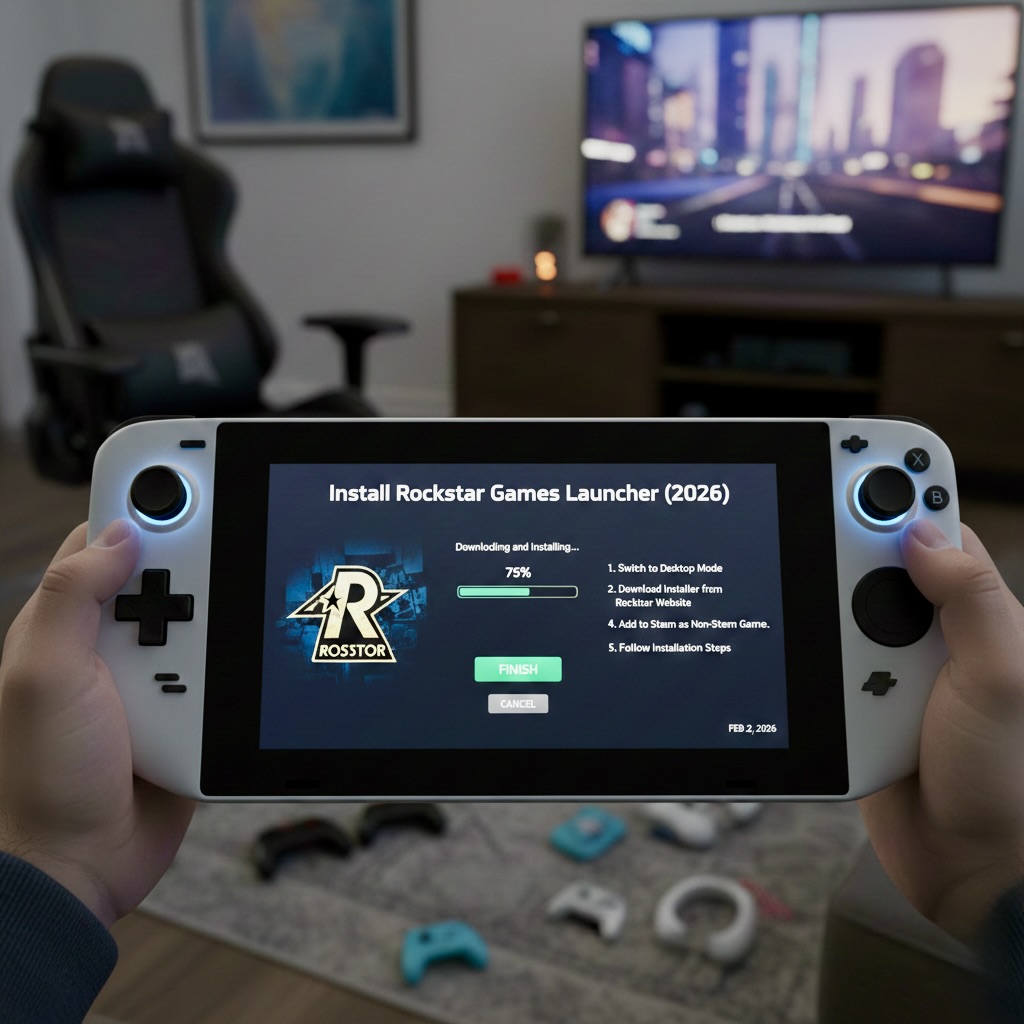
For those who have purchased GTA V or other Rockstar titles outside Steam, it sounds complicated to install on the Steam Deck. The best part is that it can be easily installed on the Steam Deck, without switching to Desktop Mode after setup. Below is a step-by-step guide on how to install Rockstar Games Launcher and GTA V. Check the optimisation settings and enjoy stable performance on the Steam Deck.
Why Players Need To Install Rockstar Games Launcher on Steam Deck?
However, many players have GTA V that they can directly play on Steam, but many have purchased it through the Rockstar Games Launcher. Though Steam Deck runs on Linux-based SteamOS, you can install third-party launchers that require compatibility tools just like Proton. Also, once you set up Rockstar Games directly, don’t forget to turn on Gaming Mode to enhance performance. You can expect it to run at 60 FPS with minor dips, which largely depends on your graphics settings.
What To Check Before Installation
While starting to install Rockstar Games Launcher on Steam Deck, ensure to keep these points in mind:
ProtonUp-Qt (or similar Windows compatibility software)
Recommended version: GE-Proton7–43
- At least 108GB of free storage space
- Optional: Mouse and keyboard connected via a USB-C hub
Find Some Useful Steam Deck Desktop Controls
If you don’t want to use a mouse or keyboard, here are a few controls:
- LT (Left Trigger): Right Click
- RT (Right Trigger): Left Click
- Steam Button + X: Open Virtual Keyboard
- A touchscreen can be used for clicking if buttons don’t respond
The Ultimate Guide to Installing Rockstar Games Launcher on Steam Deck
Step 1: Turn on Desktop Mode
Switch to your Steam Deck, then from Gaming Mode to Desktop Mode. Ensure that it allows you to download external launchers. Alo it should have configured compatibility tools.
Step 2: Download The Window Version Of Rockstar Games Launcher
- Start and Open Firefox in Desktop Mode
- Search for Rockstar Games Launcher
- Download the Windows version from the official Rockstar website
- Save the installer file in the Downloads folder
Step 3: Add Launcher to Steam Library
- Open Steam in Desktop Mode
- Click Games in the top menu
- Select Add a Non-Steam Game to My Library
- Click Browse and go to: /home/deck/Downloads
- Change file type to All Files
- Select Rockstar-Games-Launcher.exe
- Click Open and add it to your library
Step 4: Configure Compatibility Settings
- Locate the Rockstar Launcher in your Steam Library
- Right-click → Select Properties
- Rename it to:
- Rockstar Games Launcher
OR - Grand Theft Auto V (if that’s your primary game)
- Rockstar Games Launcher
- Go to the Compatibility tab
- Enable:
✔ Force the use of a specific Steam Play compatibility tool - Select GE-Proton7–43 (or latest Proton version)
Step 5: Install Rockstar Games Launcher
- Click the Play button in Steam
- Wait for the launcher to install the required drivers
- Log in with your Rockstar Social Club account
- Enable:
- Remember Me
- Auto Sign-In
This ensures smooth future launches without repeated login.
Installing GTA V via Rockstar Launcher
Step 6: Download GTA V
- Don’t turn off the Desktop Mode
- Open Rockstar Games Launcher
- Download GTA V in the default directory
- Wait for a few seconds to complete the installation
Step 7: Turn Back to Gaming Mode
- Return to Steam Gaming Mode
- Then, Go to your Non-Steam Library
- Find Rockstar Launcher or GTA V
- Click Play and Launch GTA V directly from Gaming Mode
You can now play without returning to Desktop Mode again.
Here is the Guide for Performance Settings for GTA V on Steam Deck
By default, GTA V launches with lower settings. You can adjust the visuals for a better and smoother gameplay:
Change DirectX Version: DirectX 10 → DirectX 11
- High Quality Resolution: 1280×800
- Get a Refresh Rate: 60Hz
- Enable FSR (FidelityFX Super Resolution) with 0 sharpness
- Set TDP to 10W for battery optimisation
However, with these settings, you may experience 60 FPS gameplay, which largely depends on scene complexity.
Steps to Exit the Game
Check the steps of quitting the game:
- Select and press the Steam Button
- Then, press Quit Game
Also, this will help prevent crashes or background launcher issues.
Wrap up
At first, installing Rockstar games on the Steam Deck might seem tricky, but once you understand the configuration, it offers an easygoing gaming experience. In such a way, when you are playing while exploring Los Santos in GTA V, the following setup will let you enjoy the library with excellent performance. You can install the game using the right compatibility tools, appropriate graphics settings, and refined installation steps. So, return to the Desktop mode again and just launch and play.
FAQs
1. On Desktop Mode, can I install Rockstar Games Launcher on Steam Deck?
Yes. Desktop Mode is required initially to set up the installation. Once the games are installed, you need them on your Steam Library. After this, switch to the Gaming Mode to launch the game directly.
2. Which Proton version is required for Rockstar Games Launcher?
The most recommended compatibility tool is GE-Proton7–43 or a newer GE-Proton version. This offers stability and smoother gameplay.
3. How much storage space do you need while installing a GTA V via Rockstar Games Launcher?
You should have at least 108GB of free storage space available. As it’s a large game, a large amount of space is required.
4. Can you run GTA V at 60 FPS on Steam Deck?
Yes, GTA V can run at up to 60 FPS on the Steam Deck, but using DirectX 11, 1280×800 resolution, FSR enabled, and a 10W TDP helps achieve stable gameplay with minimal frame drops.
5. Is a mouse and keyboard necessary to be installed while playing?
No, a mouse and keyboard are optional. For convenience, you can add them.